Minecraft Java
 Minecraft Bedrock
 PaperMC
 Fabric
 Forge
 GeyserMC
 Terraria
 Factorio
 Hytale
 Discord bots


Quick answer
- Open your server's Backups page (under Settings) and create a backup. Do this before every update or mod change.
- On a free FreeGameHost server, connect Google Drive so backups are stored in your own Drive, not only on the server.
- To restore, choose the backup and press Restore. Stop the server first.
Why backups matter#
Things that destroy Minecraft worlds are rarely dramatic. A plugin update that corrupts player data, a crash during a save, a mistaken /fill, a griefer with operator rights, or a free server that expires. Backups are the only fix for all of them. The golden rule is 3-2-1 in simple form: keep more than one copy, and keep at least one copy somewhere other than the server.
What to back up#
- The world folder (named
worldunless you changedlevel-name). On Minecraft 26.x the Nether and End are stored inside it; older versions also haveworld_netherandworld_the_endfolders. - Plugins or mods and their configuration folders.
- Server files:
server.properties,whitelist.json,ops.json,banned-players.json.
A full backup of the whole server is the simplest, because it includes everything and restoring is one step.
Backups in the FreeGameHost panel#
- Open Backups
In your server menu open Settings, then Backups.
- Create a backup
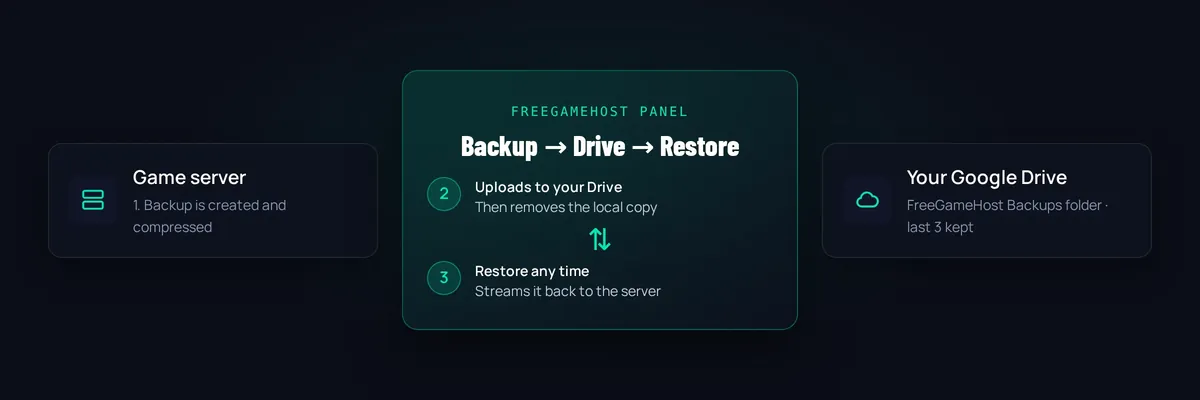
Give it a name such as before-update and start it. The panel packs the server files into a compressed archive.
- Wait for it to finish
The backup shows as complete when the archive is ready. Large worlds take longer.
Free Google Drive backups#
Free servers can store backups in your own Google Drive. Connect your Google account once from the Backups page and give the permission to create files. After that, each backup is uploaded to a folder called FreeGameHost Backups. The panel keeps the most recent few per server so your Drive isn't filled up. Because the copy lives in your Drive, it survives even if the server is stopped or expires.
The panel only touches the files it created in its own folder. It can't read the rest of your Drive.
How to restore a backup#
- Stop the server
Restoring over a running server can leave files half-written.
- Pick the backup
Open Backups and choose the one from before the problem.
- Restore
Press Restore. If you see an option to delete existing files first, use it when you want the server to match the backup exactly, and leave it off if you only want to bring back files.
- Start and check
Start the server, join, and check the world and your builds.
If a restore fails or the world won't load, try restoring only the world folder, or take a fresh backup first so you can come back to the current state.
Manual backups (any host)#
If your host has no backup tool, copy the files yourself.
- Save the world
In the console run the commands below so the world is written to disk and stays unchanged while you copy.
- Copy the files
Download the world folder (and plugin or mod folders) with SFTP or the file manager, or compress them into a zip first.
- Turn saving back on
Run
save-on.
save-off
save-all flush
# ...copy or download your files now...
save-on
When to take a backup#
| Before you... | Why |
|---|---|
| Update Minecraft or Paper | World data can be upgraded in a way that old versions can't read. |
| Add, update or remove a mod or plugin | Plugins can edit or lose data. |
Change level-name or upload a world | The wrong folder can be overwritten. |
| Give someone operator access | Griefing happens. A backup makes it a minor event. |
| Let a free server expire | Keep a copy in Drive, then move it to a new server later. |
Test your backups#
A backup you have never restored is only a hope. Once, restore one onto a spare server and join it. You'll learn how long it takes and be sure it works before you need it.
Frequently asked questions#
How often should I back up a Minecraft server?
Back up before every update, before installing or removing mods and plugins, and at least once a week on an active server. Busy servers benefit from a daily backup.
What should a backup include?
The world folder (world or your level-name), the plugins or mods folder with their configs, and files such as server.properties, whitelist.json and ops.json. A full-server backup covers all of it.
Where are FreeGameHost backups stored?
Free servers can back up to the owner's own Google Drive, in a folder called FreeGameHost Backups. The panel keeps a small number of recent backups per server so Drive doesn't fill up.
Can I restore a backup onto a different server?
Yes, download the backup or the world folder and upload it to the other server. See how to upload a world.
Does restoring delete my current files?
Restoring puts the backup's files back over your current ones. Some restore options also delete everything first (a clean restore). If you are unsure, make a fresh backup before you restore.
Is it safe to back up while the server is running?
Panel backups are designed to run while the server is on, and the server saves the world first. For the safest manual copy, stop the server or run save-off and save-all before copying, then save-on.